Collabion Charts for SharePoint allows you to enable the viewer to print the charts, export them as JPEG/PNG image or PDF or save chart data and image as an Excel sheet or as a PowerPoint Presentation.
To enable export options you need to go to User Interaction > Export Settings in the navigation pane of the Chart Wizard.
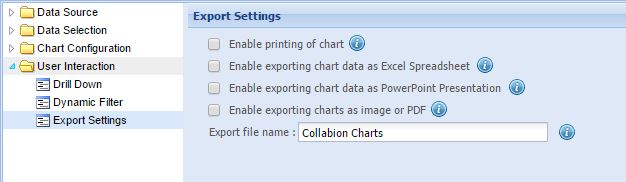
- How to enable printing of chart
- How to enable exporting chart data as Excel spreadsheet
- How to enable exporting chart as Image or PDF
- How to enable exporting chart as a PowerPoint Presentation
Check Enable printing of chart option.
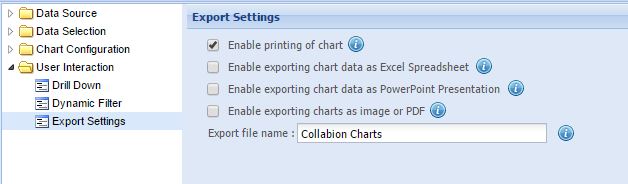
Click on Apply to save the settings. Print chart button appears at the top right corner of the chart. Click on it to print the chart.
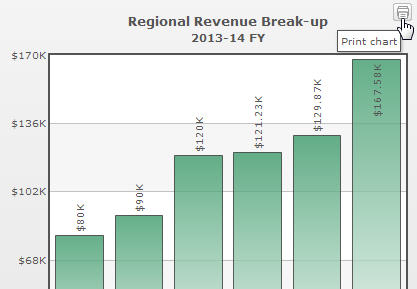
Enable exporting chart data as Excel spreadsheet
Check Enable exporting chart data as Excel spreadsheet option.
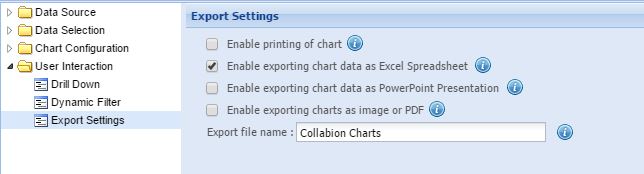
Click on Apply to save the settings. Export chart button appears at the top right corner of the chart.
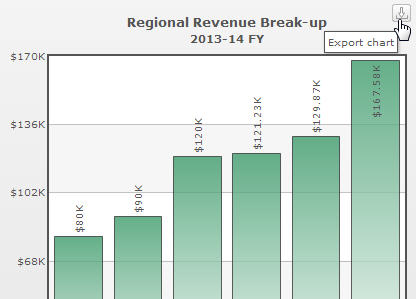
Click Export chart button; context menu appears. Select Download as Excel spreadsheet and the chart is downloaded as Excel chart in Excel file.
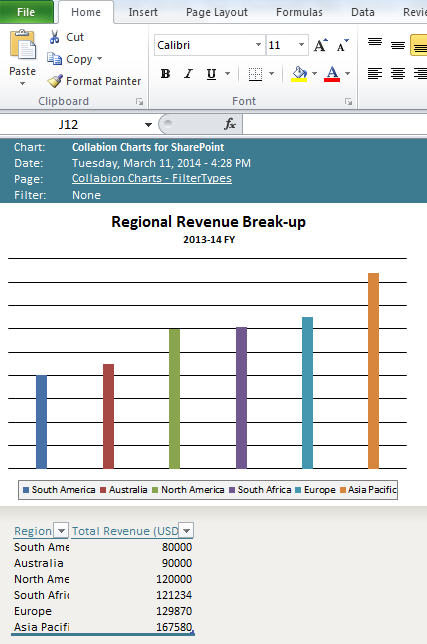
Note: The chart gets downloaded as an Excel chart; it supports all of the features of an Excel chart. As shown in the above screenshot, the chart is
linked with the data table. You can sort the columns, add filters etc.
Note: If the chart type used in SharePoint is not supported by Excel, the chart gets downloaded as an image in an Excel spreadsheet.
Enable exporting charts as Image or PDF
Check Enable exporting charts as image or PDF option.
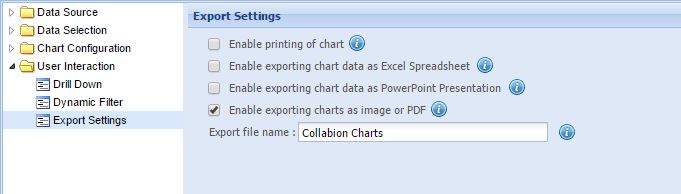
Click on Apply to save the settings. Export chart button appears at the top right corner of the chart.
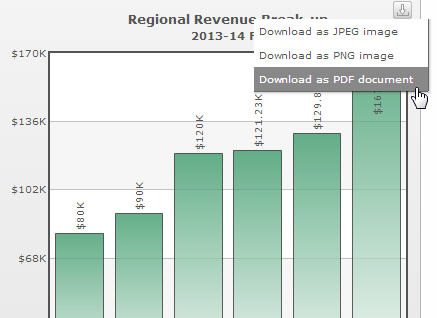
Click on Export chart button; context menu appears. Select any of the available options and the download starts immediately.
Enable exporting chart as PowerPoint Presentation
Check Enable exporting chart data as PowerPoint Presentation option.
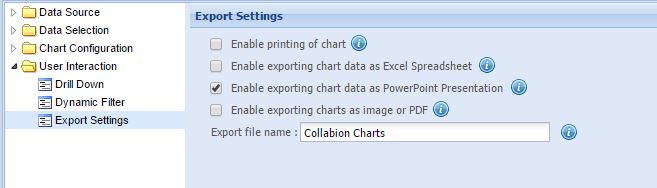
Click on Apply to save the settings.Export chart button appears at the top right corner of the chart.
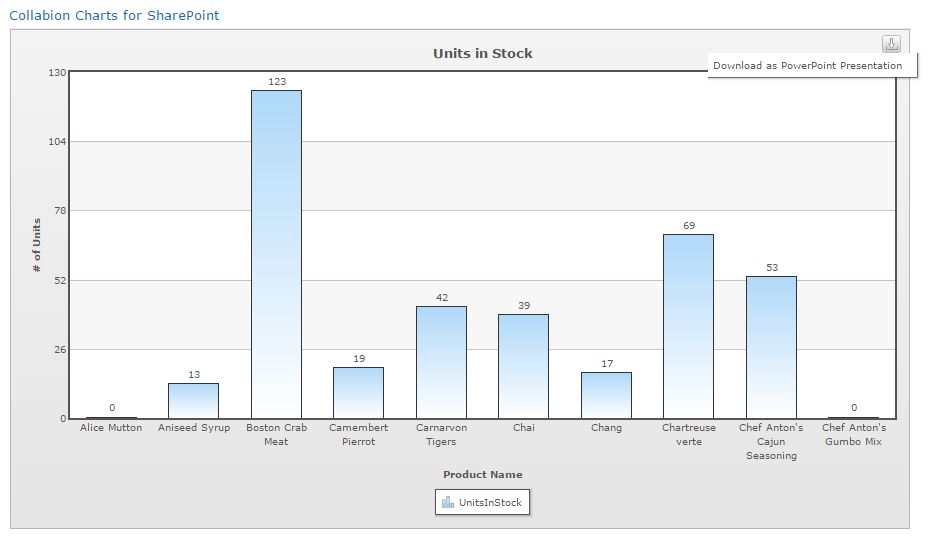
Click Export chart button; context menu appears. Select Download as PowerPoint Presentation and the chart is downloaded as an image slide in a PowerPoint Presentation (PPTX) file.
Note: You can choose one, more than one or no option at all in Export Settings section. If no export option is selected, the Export chart button does not appear on the top right corner of the chart.