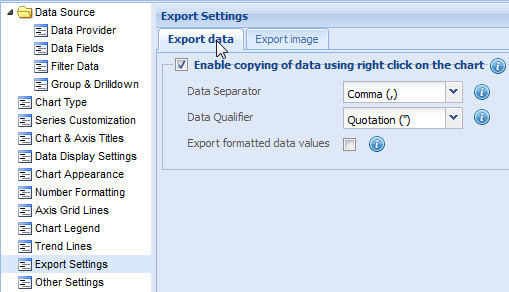
You can export chart data in CSV (comma-separated values) format, with the help of the context menu.
The chart needs to be first rendered (generated) in the browser before it can be exported. After the chart has been rendered in the browser, you can use the context menu to export the chart data and paste the generated CSV data to clipboard.
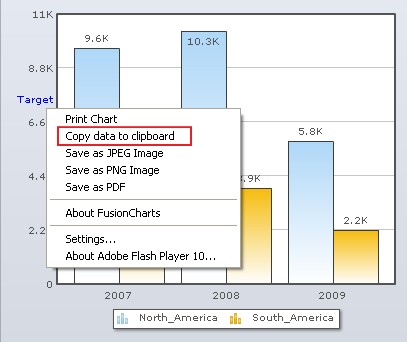
In the Data tabbed section, you can do the following:
- Enable copying of data using right click on the chart
- Specify data separator
- Specify data qualifier
- Retain data formatting
Enable copying of data using right click on the chart
You can use the context menu to copy the CSV data to clipboard.

- Select the Enable copying of data using right click on the chart check box to enable the copying of data using the context menu.
Note: Clear the Enable copying of data using right click on the chart check box to disable the copying of data using the context menu. If this check box is cleared, all the relevant fields are deactivated.
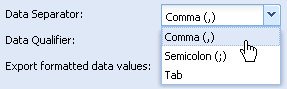
In CSV format, a special character (comma, semi colon, or tab) is used to separate the data values in the code. These are known as data separators.
For example, "Product A", "500" ,"200". Here, a comma, acting as the data separator, is separating the three values, viz. the product name and its corresponding values.
- In the Data Separator list, select the character which you want to use as the data separator.
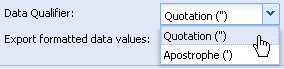
In CSV format, the data values are enclosed either between single quotation marks ( ' ) or double quotation marks ( " ). These characters are known as data qualifiers.
For example, "Product A", "500" ,"200". Here, the name Product A and its corresponding values are enclosed within double quotation marks, which are acting as data qualifiers.
- In the Data Qualifier list, select the characters which you want to set as data qualifiers.
The chart applies various number formatting settings on the data values while displaying them on the chart. For example, specifying a currency prefix to a chart value ($ 88) or specifying the chart scale (using 100M, instead of 100000000). By default, the exported data contains unformatted data values. However, you can retain the formatted values in the exported data.

- Select the Export formatted data values check box to retain data formatting during chart export.