The data source, which you have selected in earlier steps, may contain additional or spare data which you might not wish to show in your chart. You may wish to limit the items that appear on the chart, based on certain criteria. For example, you may wish to show sales data for a particular year from a data source which contains sales data of a decade. Filter Data page allows you to narrow down the selection of data.
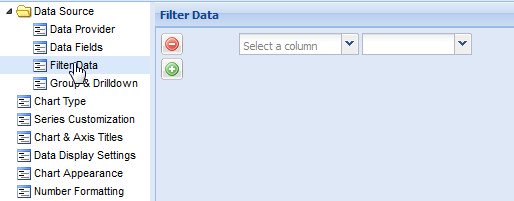
To achieve this, you need to create one or multiple filters. Each filter is a criteria that you need to define under the Filter Data section.
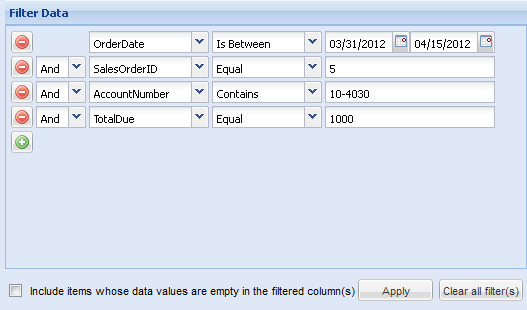
A sample use of filters is illustrated by the image shown below:
What do you want to do?
- Define and apply a filter
- Manage multiple filters
- Delete a filter
- Apply filter on numbers
- Apply filter on text values
- Apply filter on dates
- Add empty records for missing dates
To define and apply a filter, follow the steps below:
- Click Add
 button to start defining a new filter. You do not need to do this for the first filter.
 - In the Select a column drop-down list, choose the name of the data column or field on which you wish to apply your filtering criteria.

For example, if you have sales data and wish to show all dues above a certain value (say, 1000) choose the column associated with dues.

Note: After selecting a column, a drop-down list, containing various filtering conditions, appears beside the column name.
- Select filtering condition from the drop-down list.
For example, to get all the values higher than a criteria, select Greater.

NOTE: Based on the type of data value present in the selected column, the filtering conditions may vary. We will learn more of these conditions from Apply filter on numbers, Apply filter on text and Apply filter on dates sections.
- Provide the filtering criteria or the value based on which data is to be filtered.
For example, the filter below helps in gathering all data where total due is higher than 1000.

Finally, click Apply  to confirm the filtering criteria. A table present at the bottom of the page displays the filtered data.
You can always define and apply more than one filter. For example, you may wish to see all sales dues higher than 1000 from a single territory.
For this all you need to do:
- Create more than one filter using the steps stated in Define and apply a filter section.
- Group all the filters together selecting And or Or from the drop-down beside each filter.
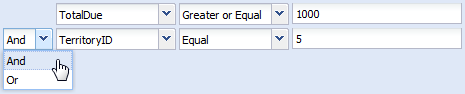
Finally, click Apply to confirm the filtering criteria. A table present at the bottom of the page displays the filtered data.
You can always delete a filter clicking the Delete  button present at the left section of each filter definition.

Finally, click Apply to confirm the final filtering criteria. A table present at the bottom of the page displays the filtered data.
You may need to to apply filter on numeric values. For example, you wish to show all sales values based on a certain criteria. For this, you need to:
- Select a column of numeric data type.
- Select a condition from the drop-down list. The available conditions are:
- Equal
- Not Equal
- Greater
- Greater or Equal
- Less
- Less or Equal
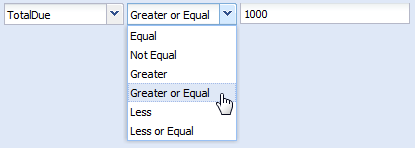
- Provide the filtering value.
Finally, click Apply to confirm the filtering criteria. A table present at the bottom of the page displays the filtered data.
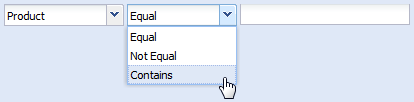
You can apply filters on text values. For example, you wish to show sales figures of a single sales person (say, "Emily"). For this you need to:
- Select a column of text data type.
- Select a condition from the drop-down list. The available conditions are:
- Equal
- Not Equal
- Contains
- Provide the filtering value.
Finally, click Apply to confirm the filtering criteria. A table present at the bottom of the page displays the filtered data.
You can apply filters on date values. For example, you can show all sales orders received on a particular date. For this you need to:
- Select a column of date/time type.
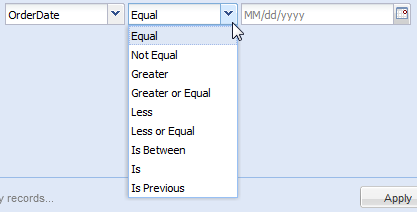
- Select a condition from the drop-down list. The available conditions are:
- Equal
- Not Equal
- Greater
- Greater or Equal
- Less
- Less or Equal
- Is Between
- Is
- Is Previous
- Pick or enter a date to set the filtering value.
Note:
- To pick a date, click the date-picker button.
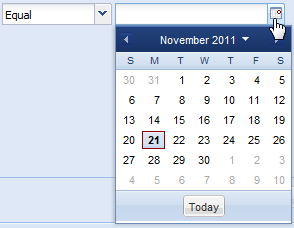
- You can apply a date-range or the starting and ending dates of a time-period as a filter. For this you need to select the Is Between condition. For this condition, you are needed to pick or enter two dates.

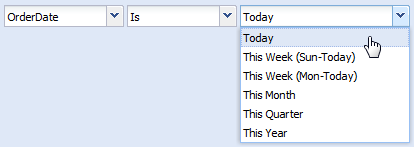
- You can also quickly apply the current date, current week, current month, current quarter or current year as the filter criteria. For this you need to select the Is condition and choose a current date option from a list as shown in the image below:
- If you select the Is Previous condition, you can specify the number of Days, Weeks, Months, Quarters or Years from current date as the filtering criteria.
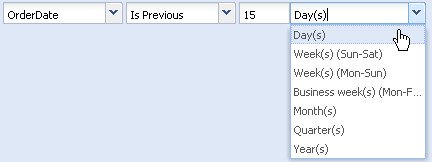
Finally, click Apply to confirm the filtering criteria. A table present at the bottom of the page displays the filtered data.
Add empty records for missing dates?
Date based filters can pick up records only for those dates which are available in the data source. This may lead to missing records for particular dates due to absence of data for this dates. For example, you are applying a filter to show sales figures of a month. It is likely that there would not be any sales record for non-business days like weekends. The resultant data skips the records for these dates.
If you wish to add empty records for the missing dates, select the Include items whose data values are empty in the filtered column(s) option.
